Free CRM software for your business
See why customers love Bitrix24


CRM that's packed with sales, marketing, and analytics tools
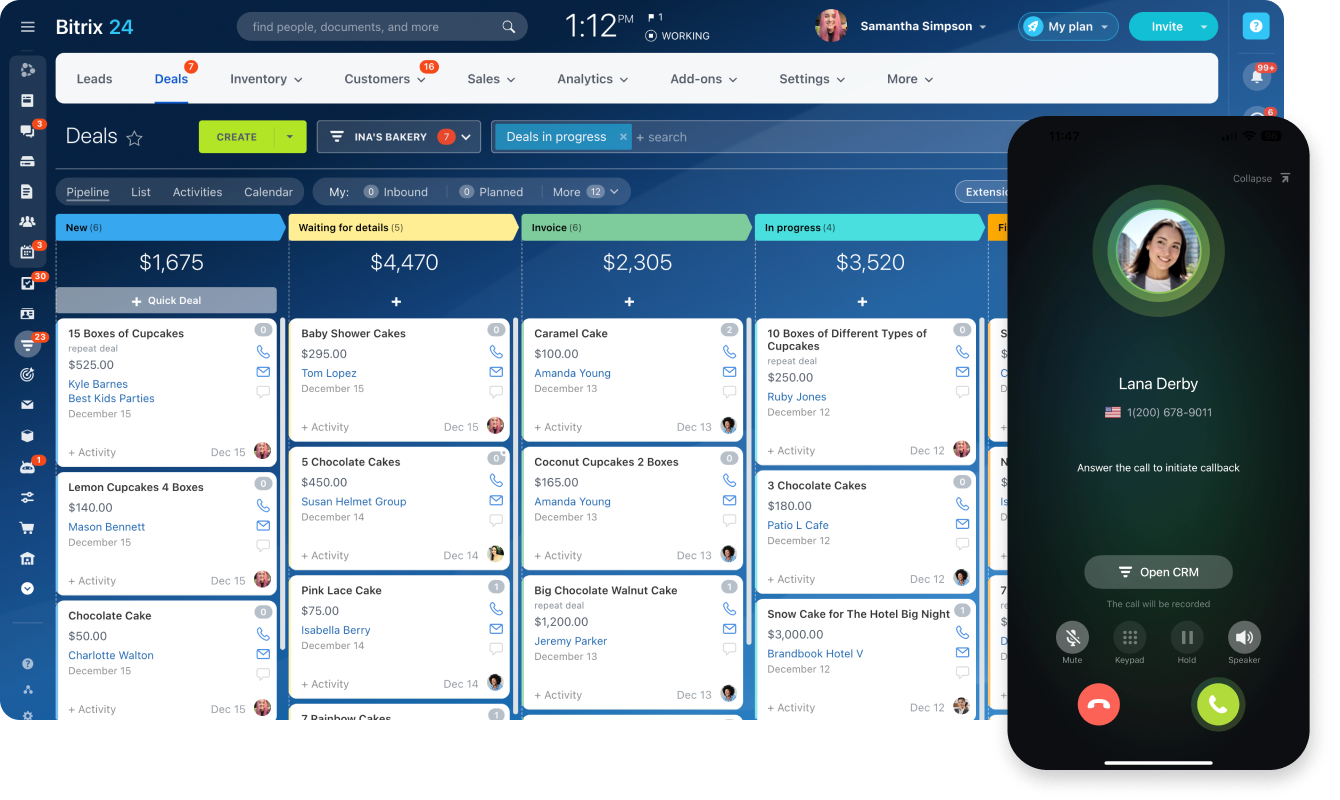
Bitrix24 CRM has everything you need to acquire leads, turn them into deals, receive payments, manage inventory, e-sign documents, run marketing campaigns, increase customer engagement, grow customer retention, track sales metrics, and more.

Serious automation capabilities
Set up automated client notifications via SMS or email, use our customizable triggers to automatically move leads/deals down the sales pipeline, configure automated notifications to your sales reps based on the lead/deal status.

Free AI-powered sales assistant CoPilot
Use our free AI-powered assistant CoPilot to create compelling marketing texts, generate new ideas, and transcribe phone calls in your CRM, autocompleting the fields in the respective lead or deal. The AI scoring tool will help you with sales forecasting.

Omnichannel communication
No matter how a client contacts you (web form, email, live chat, social media, messenger, telephony), their message will be processed in the Contact Center and automatically turned into a lead in your CRM. From there, you can either continue the conversation or create a deal.

BROWSE BY TOOL
Leads
Deals
Estimates
Invoices
Payments
Product catalog
E-signature
Inventory management
CRM store
Email marketing
Landing pages
SMS
Ads on Google & social media
CRM forms
Social media integrations
Webmail
Telephony
Website widget
Workflow automation
BI reports & data analysis
Sales automation
AI assistant in CRM
Video calls
Calendar
Tasks
File storage
API & CRM integrations
Access permissions
Booking
More than just CRM
In addition to purely sales and marketing tools, Bitrix24 features everything your team needs to collaborate and communicate efficiently: chat, video calls and conferencing, file storage, calendar, online documents, mobile sales app, tasks, work time tracking, and more.

Enhance your Bitrix24 experience
Go beyond the standard functionality and migrate your data easily using apps, add-ons, and extensions from the Bitrix24 Market.
- 1 Integrations with WhatsApp, telephony, etc.
- 2 One-click data migration to Bitrix24.
- 3 550+ apps and solutions in the catalog


EXPLORE BITRIX24 CRM
Here are the numerous components and tools that make up our CRM. Cross-integrated and interlinked, they all work as a part of a single ecosystem.
Sales management
A full set of sales management tools for your business, including leads, deals, contacts, pipelines, and more.
Sales enablement
Everything you need to power up your sales is here: estimates, invoices, payments, product catalog, inventory management, e-signature, and more.
AI-powered sales
Create original ideas for a special offer, write compelling copy for a promotional email, transcribe a phone call with a client, and more.
Marketing
Reach your clients in a way that's convenient to them: email, SMS, phone, social media, landing pages, and more.
Mobile CRM
Manage your sales, clients, and team from your smartphone using the Bitrix24 mobile app.
Contact Center
A versatile omnichannel contact center solution, featuring web forms, widgets, live chat, integrations with WhatsApp, Instagram, telephony, email, and more.
Analytics & reports
Get comprehensive analytics and reports tools for your business, including sales funnels, employee performance, BI reports, and more.
Sales team collaboration
Elevate your sales team communication with chat, online meetings, tasks, calendar, file storage, online documents, and more.
Automation & integrations
A full set of sales automation tools for your business, including customizable rules and triggers, workflow automation, automated funnels, third-party integrations, and more.
FAQ
What is CRM software?
Is Bitrix24 free?
What should I look for when choosing a CRM system?
Can I migrate my data from another CRM to Bitrix24?
What integrations are available with Bitrix24 CRM?
Who uses CRM software?
Get your Bitrix24 set up by local professionals
Find a Bitrix24 partner in your area and schedule a personal product demo.
FIND BITRIX24 PARTNER NEAR ME
Get started with Bitrix24 in less than 1 minute
Create free account
Invite your team
Tailor Bitrix24 to your needs and start working