- Home
- Tasks and projects
-
Zendesk Integration
Zendesk Integration
Zendesk integration. Service that’s up close and personal
Install
Free
In-app purchases
-
RatingNo ratings
-
Installations2644
-
DeveloperBitrix24 Integrations
Description
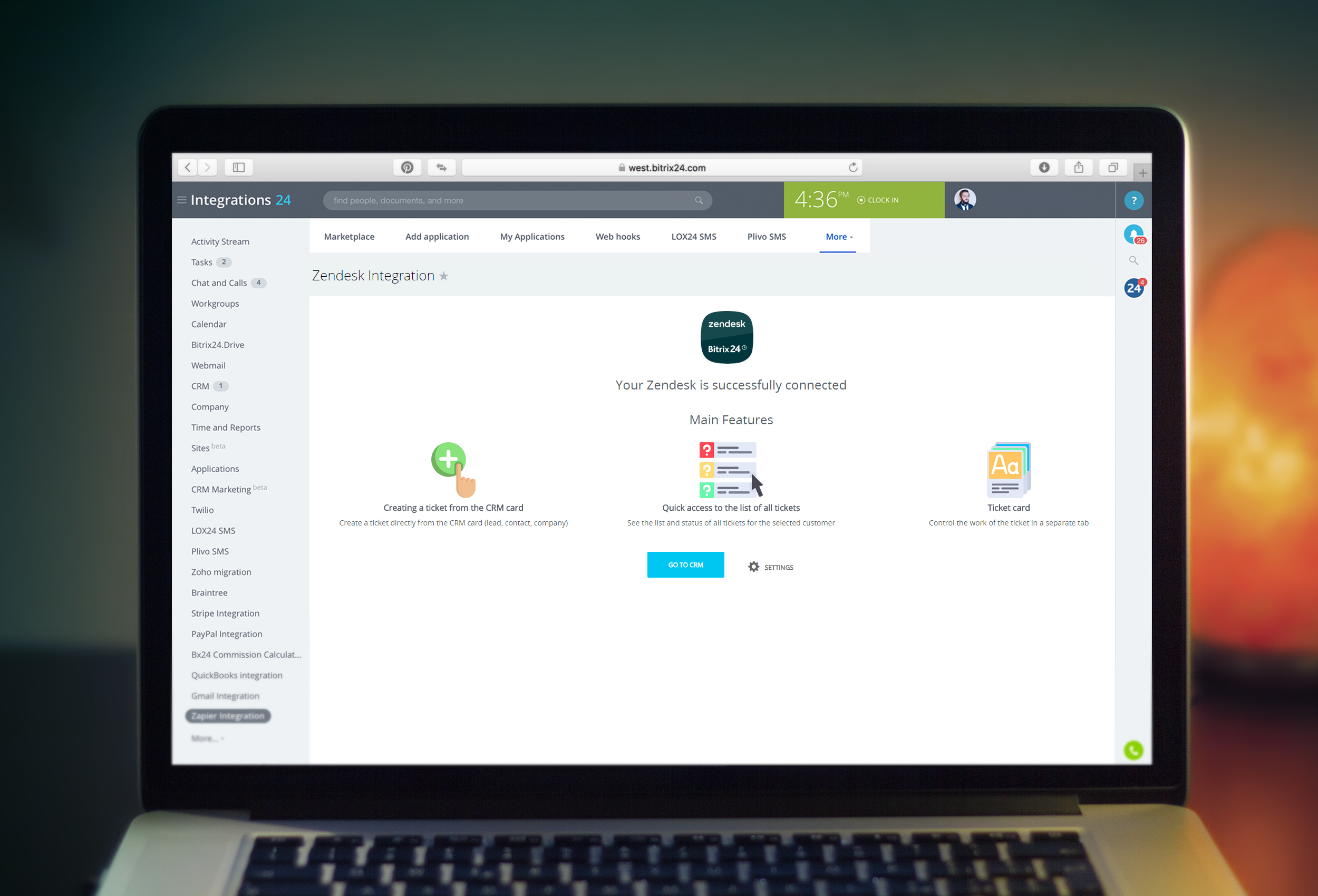
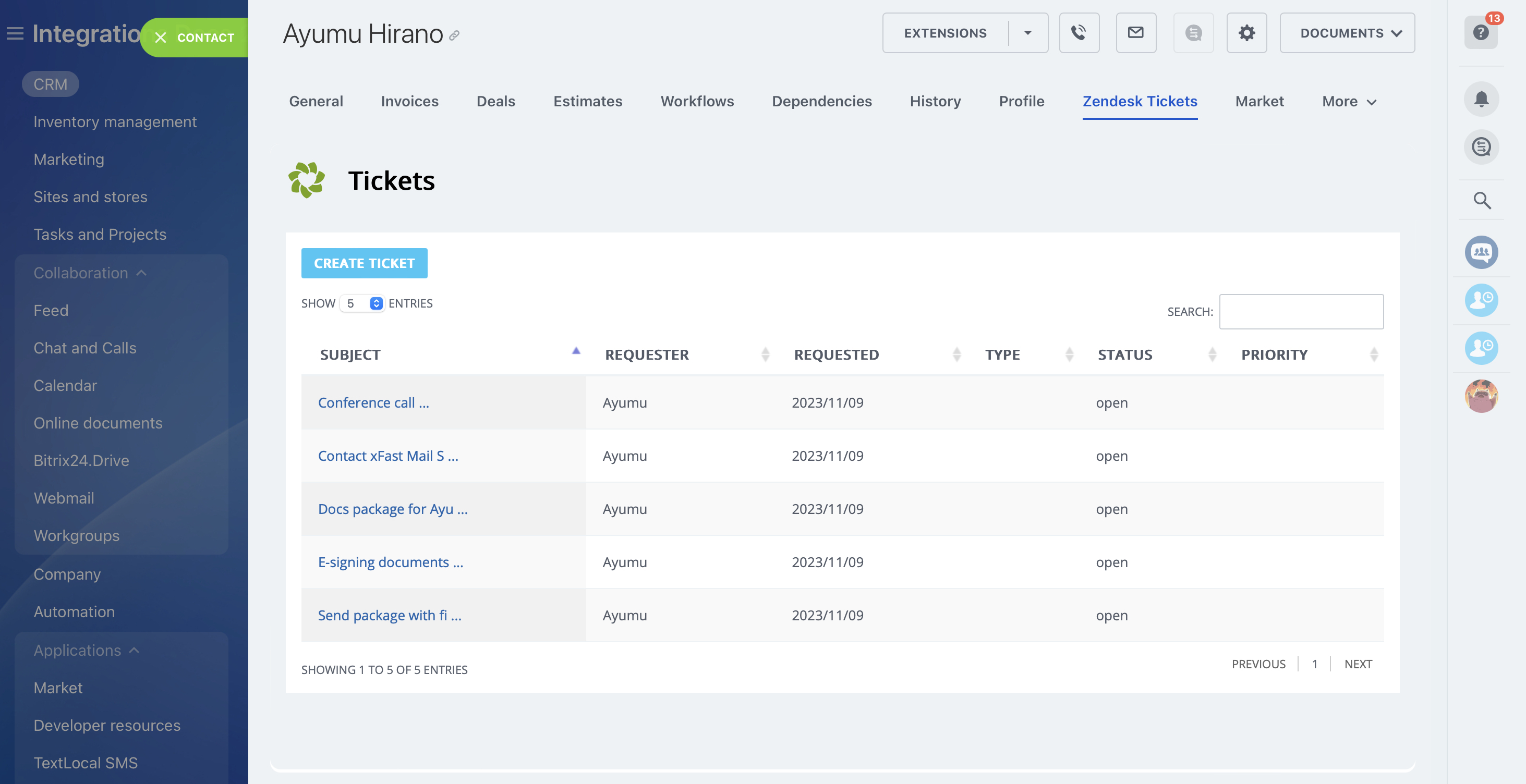
Gain complete control of your Zendesk tickets right in Bitrix24 interface!
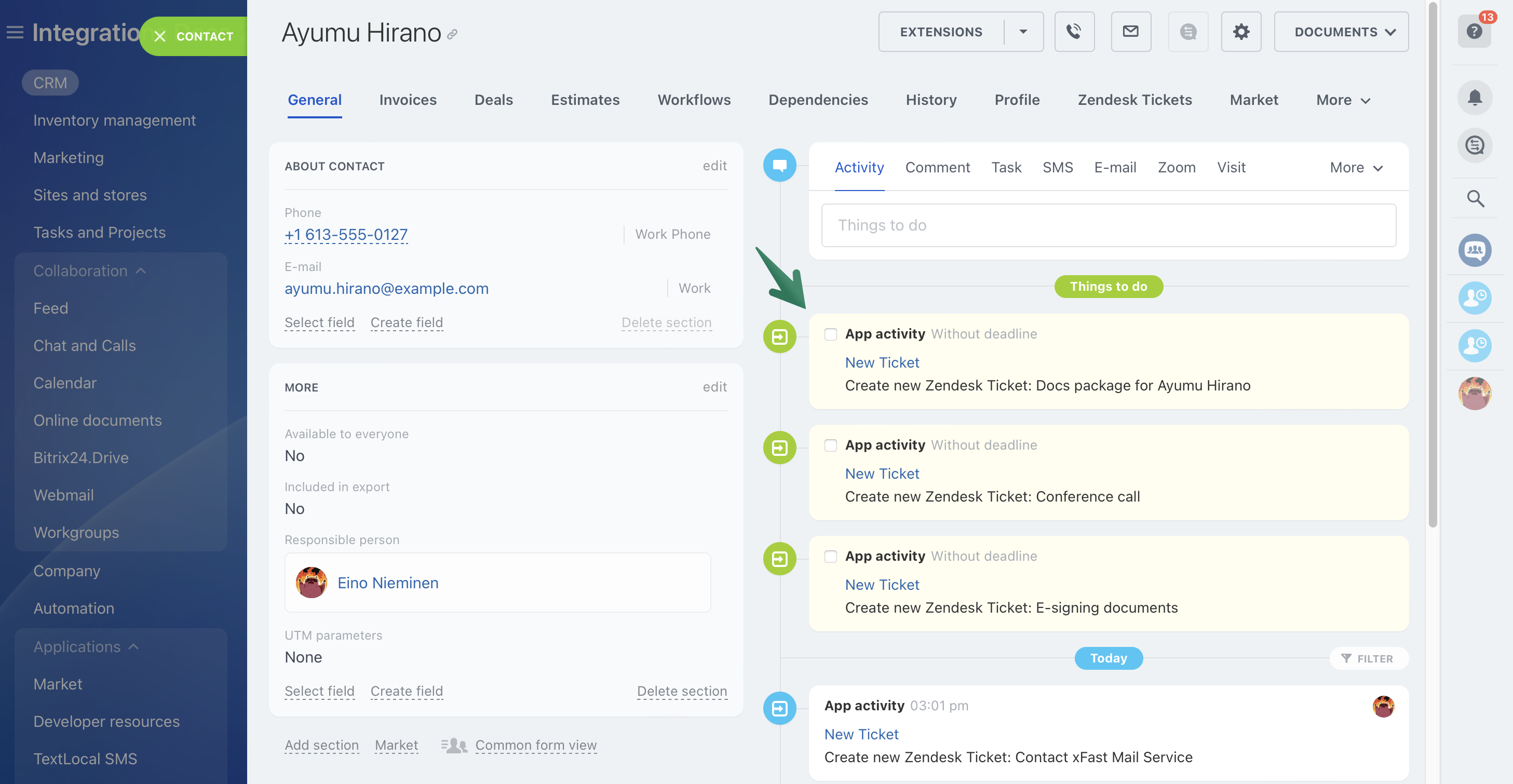
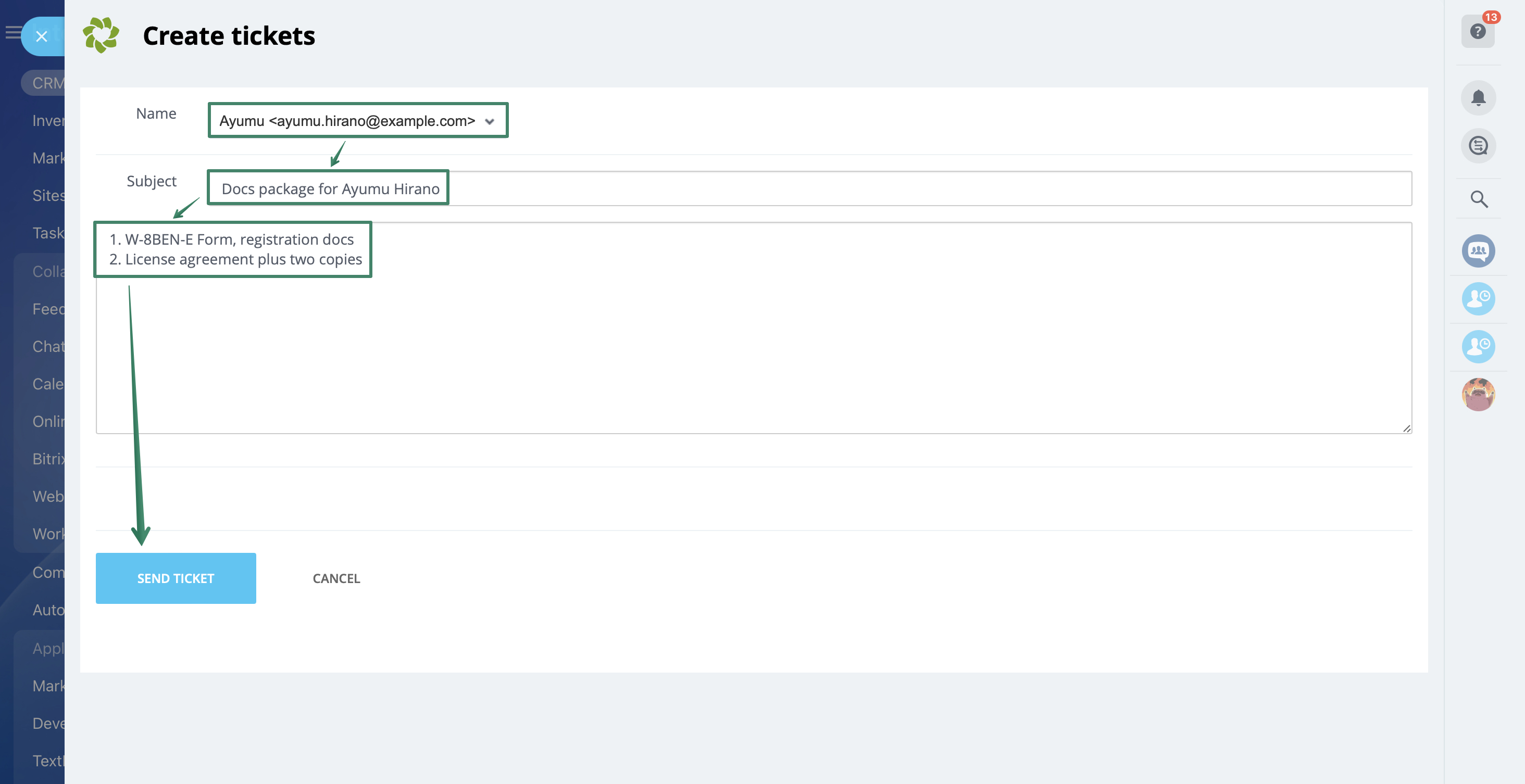
View ticket details and create new ones, all while keeping the powerful Bitrix24 tools right at hand.
Learn more about the app in our Helpdesk article.
The app works with Bitrix24 commercial plans only.
There is an opportunity to try the application for free during the demo period.
View ticket details and create new ones, all while keeping the powerful Bitrix24 tools right at hand.
Learn more about the app in our Helpdesk article.
The app works with Bitrix24 commercial plans only.
There is an opportunity to try the application for free during the demo period.
Technical Support
If you are facing an issue or would like to receive some more information about the app, kindly contact Bitrix24 support.
Our dedicated Integrations support team will be delighted to assist you and provide guidance on any inquiries you may have regarding the app.
Additionally, we highly recommend following the steps outlined in this article to troubleshoot common issues in the event that the app is not functioning or connecting as expected.
Installation instructions
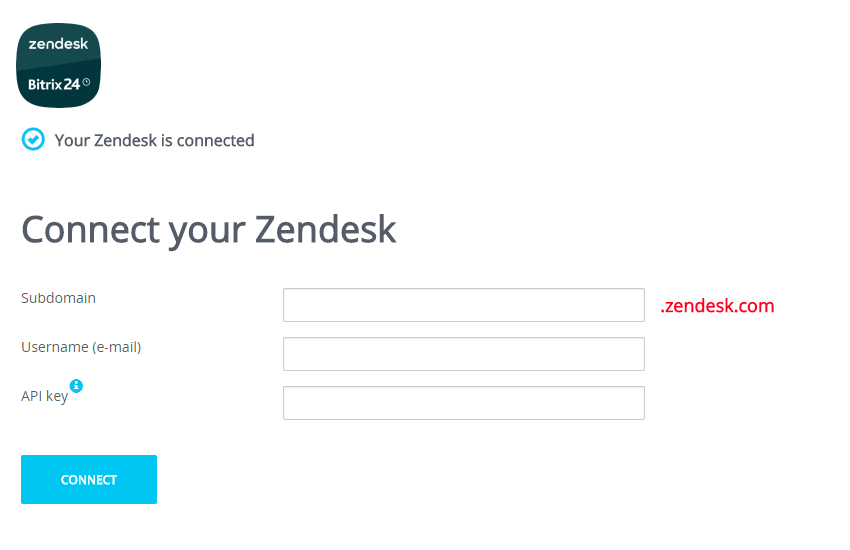
When at the settings page, input your Zendesk account data:
If required, you can connect another Zendesk account to Bitrix24 at the application settings page (“Settings” button).
Obtain API token:
1. Go to the "Admin Center".
2. Go to "Apps and integrations".
3. Go to "Zendesk API".
4. Click the "Settings" tab
5. Make sure that the "Token access" switch is on
6. Click the "Add API token" button
7. Copy and save your token
- Subdomain
- Login email
- API token
If required, you can connect another Zendesk account to Bitrix24 at the application settings page (“Settings” button).
Obtain API token:
1. Go to the "Admin Center".
2. Go to "Apps and integrations".
3. Go to "Zendesk API".
4. Click the "Settings" tab
5. Make sure that the "Token access" switch is on
6. Click the "Add API token" button
7. Copy and save your token
Data security
Zendesk Integration
The application requests access to the following data:
CRM
full access: view, create, edit and delete leads, contacts, companies, deals, invoices, quotes, activities, user fields etc.
Users (minimum)
read user list and names without contact information
Company structure
full access: view, create, edit and delete departments
Application embedding
full access: view, create, edit and delete widgets
Chat and Notifications
full access: view, create, edit and delete chats and messages; connect users to chats; edit chats; read all chat messages
Rating
0 /5
5 stars
0
4 stars
0
3 stars
0
2 stars
0
1 star
0
Reviews
No reviews!